Effective Ways To Remove Viruses From Your Phone
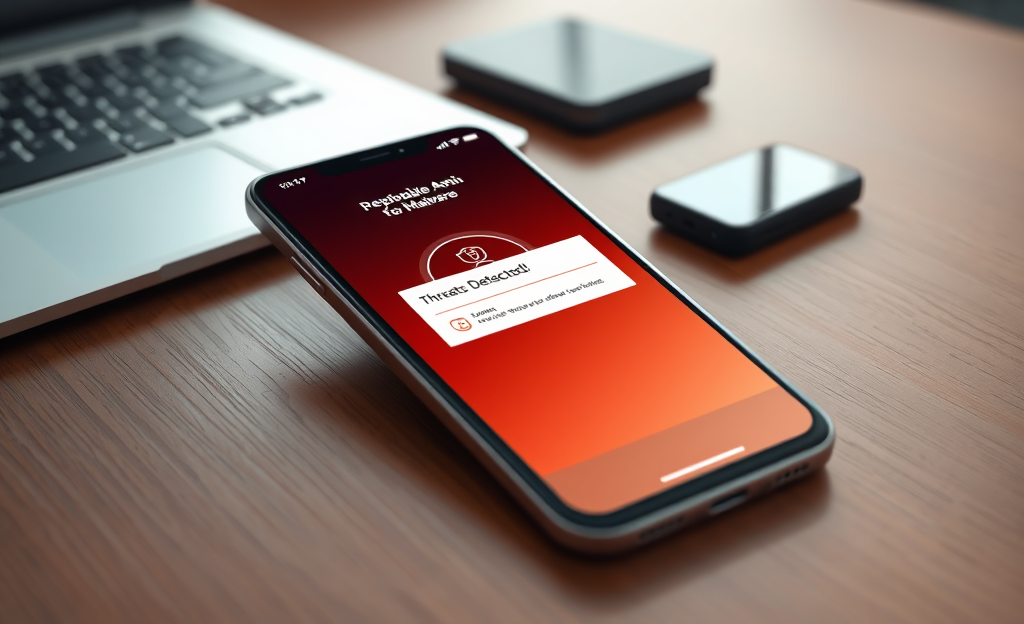
Phone Security is an essential aspect of modern smartphone use, as our devices store a wealth of personal information.

With the increasing prevalence of malware and viruses, it is crucial to take proactive measures to protect your phone from potential threats.
Easily restore deleted photos
Find lost pictures in minutes
Bring back your favorite moments
In this article, we will explore key steps you can take to ensure your device remains safe and secure.
From downloading reliable antivirus software to maintaining software updates, following these guidelines will help shield your phone from malicious activities and safeguard your valuable data.
Acting Quickly Against Mobile Viruses
Mobile viruses present a serious threat to users, affecting everything from personal privacy to financial security and overall device performance.

These infections can silently access confidential data like saved passwords, banking details, and location history, opening the door for identity theft, fraud, and unauthorized misuse.
Worse, they often run in the background, draining battery life, slowing down performance, and causing apps to crash without warning.
Delaying action even for a short time exposes users to increasing risks, as some viruses can spread aggressively through messaging apps or exploit device permissions to gain deeper control.
Therefore, removing a phone virus swiftly can be the defining factor between fully securing your data or suffering irreversible loss.
One of the most effective defenses starts with downloading a trusted antivirus program like Avast Mobile Security, which can identify and eliminate threats in real time.
Following up with regular scans, system updates, safe browsing habits and, when needed, a complete factory reset, drastically reduces vulnerability.
Protecting your smartphone demands speed because the longer a virus lingers, the more damage it causes.
Viruses don’t wait—why should you? Act now to defend your data and restore device performance.
Choosing and Installing a Trusted Antivirus App
Selecting a trusted antivirus app for your smartphone requires more than just popularity — it demands validation of the app’s legitimacy and performance.

Start by only downloading apps from official sources such as the Google Play Store for Android or the Apple App Store for iOS.
Check the developer’s reputation, ensuring they’ve established a track record in cybersecurity.
Look for independent lab certifications from AV-Test or AV-Comparatives, which confirm the app has passed industry-recognized standards.
Recent, positive user reviews also indicate the tool’s effectiveness and reliability, especially when updates have been released to address current threats
A good antivirus app must support automatic updates and allow scheduled scans to ensure continuous protection.
After installation, configure these features immediately to secure your phone against threats.
Some of the most recognized antivirus apps in the market include:
Running a Complete Scan and Eliminating Threats
Most mobile antivirus apps offer a straightforward dashboard upon opening, typically showcasing a central scan button and a status summary of your device’s current health.
To start a full scan, users should locate and tap the icon labeled with terms like “Full Scan” or “Device Scan.” In apps like Avast Mobile Security or Bitdefender Mobile Security, this option initiates a deep analysis of all files, apps, and settings.
During the scan, you’ll see a progress bar and real-time detection results, which classify threats with colored warning levels such as red for high risk or yellow for medium.
The scan typically finishes within minutes, but that depends on storage size and app complexity.
Once completed, the app presents a dashboard of discovered threats with suggested actions.
Common buttons like “Resolve,” “Quarantine,” or “Delete” appear beside each threat.
It’s critical to follow the recommendations provided by the antivirus app, as ignoring them could compromise your data or security.
Users should quarantine or delete any high-risk threat immediately to prevent further infection.
Cybersecurity experts recommend running full scans at least once a week and after installing any new application to ensure continuous protection.
Keeping the System and Apps Up to Date
Keeping your phone’s system and apps updated plays a crucial role in preventing vulnerabilities that malicious software can exploit.

Hackers commonly target flaws in outdated operating systems and apps to gain unauthorized access or install harmful content.
To stay secure, go to your phone’s settings and open the Software Update section—on Android, this is typically under System, while iPhone users go to General > Software Update.
Tap “Check for updates” and install any available patches.
Ensure all apps are also current by visiting the Play Store or App Store’s “Manage apps” section.
After installing updates, restart your device immediately, as some patches don’t activate until reboot.
Delaying updates increases exposure to known threats, making devices an easier target.
Staying updated minimizes risk and helps maintain system performance effectively.
| Action | Benefit |
|---|---|
| Enable automatic OS updates | Patches critical vulnerabilities |
| Regularly update all installed apps | Blocks malware entry routes |
Using Factory Reset as the Ultimate Solution
A factory reset completely wipes your device, restoring it to its original state and removing all apps, settings, and data.
This action cannot be undone, so it’s critical to understand the consequences.
You’ll lose personal files, messages, call logs, app configurations, and more if you fail to back them up properly.
Many users overlook this step, only to regret it once it’s too late.
For those facing persistent malware infections or performance issues that resist all other fixes, a factory reset may be the most effective solution.
- Start by syncing your contacts with your Google or Apple account
- Back up your photos and videos with Google Photos cloud storage or iCloud
- Move essential files to a secure cloud like Dropbox or an external drive
- Log out of all accounts to avoid any automatic syncing or issues during setup
- Locate the factory reset option under Settings > System > Reset Options
- Confirm your credentials when prompted and select “Erase all data”
- Restore only clean backups after the reset completes to avoid reinfection
Developing Safe Everyday Habits
To prevent your phone from being infected by malware, staying alert is your first line of defense.

Avoid clicking links in emails or messages unless you trust the source, even if they appear legitimate.
Cybercriminals often mask threats behind shortened URLs or familiar branding.
Instead, access websites directly through browsers or verify senders before engaging.
Sideloading apps from unknown sources is another high-risk behavior.
Always use the official app stores, like the Google Play Store or Apple App Store, even when tempted by exclusive apps found elsewhere.
Review app permissions carefully—if a photo editor asks to access your microphone, that’s a red flag.
Be proactive in understanding each app’s behavior.
Public Wi-Fi can also be a gateway for attacks.
Use a trustworthy VPN when connecting to unsecured networks to encrypt your data.
Enable built-in protection like Google Play Protect or iOS Lockdown Mode to automatically detect unusual activities.
Stay informed about emerging threats through security blogs or updates from your phone manufacturer.
Safe habits practiced daily form a silent but strong barrier, providing the most reliable protection against viruses.
In conclusion, maintaining strong Phone Security is vital for protecting your personal information.
By following the outlined steps, you can minimize risks and enjoy a safer smartphone experience.