Remove Viruses From Your Cell Phone for Free
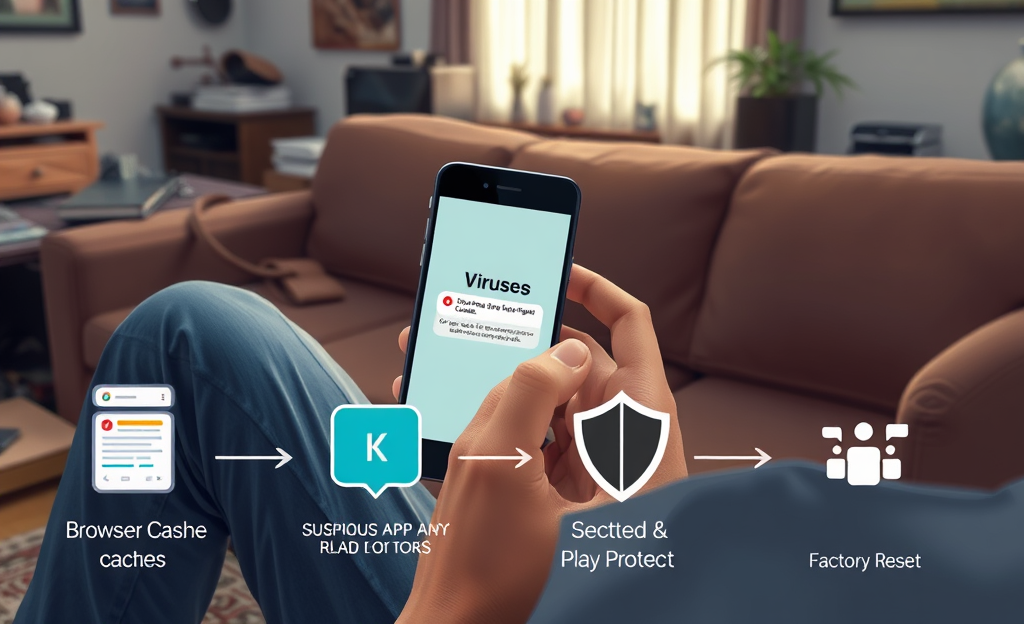
Virus Removal is an essential topic for anyone using a smartphone today.
Recover your precious memories now!
Get back your lost photos easily!
With the growing threat of malware and other harmful files, it’s important to know how to keep your device safe without resorting to costly applications.
In this article, we will explore effective, step-by-step methods to remove viruses from your cell phone.
We’ll cover everything from clearing your browser cache to utilizing built-in tools, ensuring your phone remains secure and functions smoothly.
By following these guidelines, you can protect your valuable data and enjoy a safer mobile experience.
Understand Virus Risks and Free Removal Paths
Mobile viruses often go unnoticed until it’s too late — your battery drains abnormally fast, your apps crash, and your private data leaks without warning.
These threats don’t just slow down your phone, they can compromise your identity and financial security.
While many users fear they need to invest in expensive antivirus subscriptions, the truth is that free methods are often more than enough to wipe out threats.
From built-in features like Google Play Protect to safe mode troubleshooting, there are effective techniques available at no cost.
According to MakeUseOf’s virus removal guide, simply reviewing suspicious apps and cache data can lead to significant improvements.
Moreover, performing a manual cleaning amplifies your control without risking third-party tracking.
The key is knowing where to look and trusting built-in tools before turning to paid apps.
Let’s now explore how to regain your phone’s safety without spending a dime
Clear Your Browser Cache and Data
Malicious code often embeds itself through compromised websites or redirects, leaving harmful data remnants in your browser’s cache and cookies.
By wiping these traces, you eliminate potential threats and stop tracking scripts from executing in the background — a crucial point in keeping your device clean and responsive.
- 1. On Android: Open the Chrome app, tap the three-dot icon in the top-right, then choose History and tap Clear browsing data. Choose Clear cache, cookies, and site data, then tap Clear data. For deeper cleanup, visit AVG’s Android virus guide for advanced tips.
- 2. On iPhone: Open Settings, scroll down to Safari, then tap Clear History and Website Data. Confirm your action to wipe stored data. If using Chrome, follow similar steps by opening Chrome settings and tapping Privacy and Security.
Perform this cleanup regularly or right after visiting suspicious websites to maintain a secure device.
Remove Unrecognized or Suspicious Apps
Removing unrecognized or suspicious apps from your mobile phone is an essential step in protecting your data and avoiding infections.
These apps often disguise themselves with familiar icons or mimic functionality of genuine apps, but behind the scenes, they may be accessing sensitive data or injecting unwanted ads.
If you’ve noticed abnormal behavior such as sudden battery drain, excessive data use, or pop-up ads, you likely have a malicious app.
Begin by checking apps you don’t remember installing and review permissions like access to your camera, microphone, location, or messages.
Going through your settings helps eliminate these threats easily, and both Android and iPhone offer straightforward uninstall options as shown below:
| Platform | Removal Path |
|---|---|
| Android | Settings › Apps › select app › UNINSTALL |
| iPhone | Home screen › tap and hold app › tap REMOVE APP |
If persistent problems remain, reboot into Safe Mode and follow these steps or scan using built-in tools such as Avast’s Android Security Tools pageOn iPhone and iPad, iOS deploys a sandboxed ecosystem and integrated security processes that actively protect your device.
While it doesn’t offer a button to scan for malware manually, it applies real-time monitoring through system-level checks.
Every app passes through an Apple verification process before reaching your device.
If you suspect any irregular behavior, open Settings, navigate to General, and review the list of installed apps for suspicious entries.
Apple’s built-in protections and app review policies serve as constant shields against malicious software.
For users seeking deeper control or insight, solutions like Malwarebytes for iPhone can provide an additional layer of protection, although iOS remains highly capable even without third-party tools.
Boot Into Safe Mode to Handle Persistent Threats
Safe Mode is a diagnostic mode on smartphones that starts the system with only essential apps and services running, temporarily disabling third-party apps.
This makes it a powerful tool for identifying and removing stubborn malicious software that hides under normal operation.
When in Safe Mode, users can easily uninstall suspicious apps or perform further troubleshooting without interference from rogue software.
- Android (most models): Press and hold the Power button, then tap and hold Power off until the Safe Mode prompt appears. Confirm to reboot into Safe Mode. On devices like Samsung or Google Pixel, holding the Volume Down button during startup also triggers Safe Mode. More detailed instructions can be found on AVG’s Android Safe Mode Guide.
- iPhone: iPhones do not officially support Safe Mode like Android, but users can remove questionable apps manually or perform a full reset through recovery mode if necessary. Some advanced users turn to jailbreaking tools, as discussed in Apple’s community discussion.
To exit Safe Mode, simply restart your device normally by pressing the Power button and selecting Restart.
Factory Reset Only as a Last Resort
Always backup your data before considering a factory reset
because this action will completely erase everything on your device, including photos, messages, app data, and important documents.
Ignoring this crucial step can result in permanent data loss with zero chance of recovery even if you act quickly.
Relevant text to remember is that cloud backups through Google or iCloud are the safest options to restore your digital life after a reset.
Take a few minutes to ensure all essential content is securely saved before proceeding.
To perform a factory reset on Android, go to System settings and select ‘Erase all data (factory reset)’.
On iPhones, navigate to Settings > General > Transfer or Reset iPhone, then tap Erase All Content and Settings.
This action deletes all user data, and apps will need to be downloaded again.
For both systems, make sure the device is connected to Wi-Fi and stays charged through the process.
Factory reset should only be used when all other malware removal options fail.
In conclusion, maintaining a virus-free smartphone is crucial for your digital security.
By following the outlined steps, you can effectively remove any threats and keep your device running optimally.
Don’t hesitate to take action and safeguard your mobile experience.



0 Comments