How to Track an Android Phone Easily and Effectively
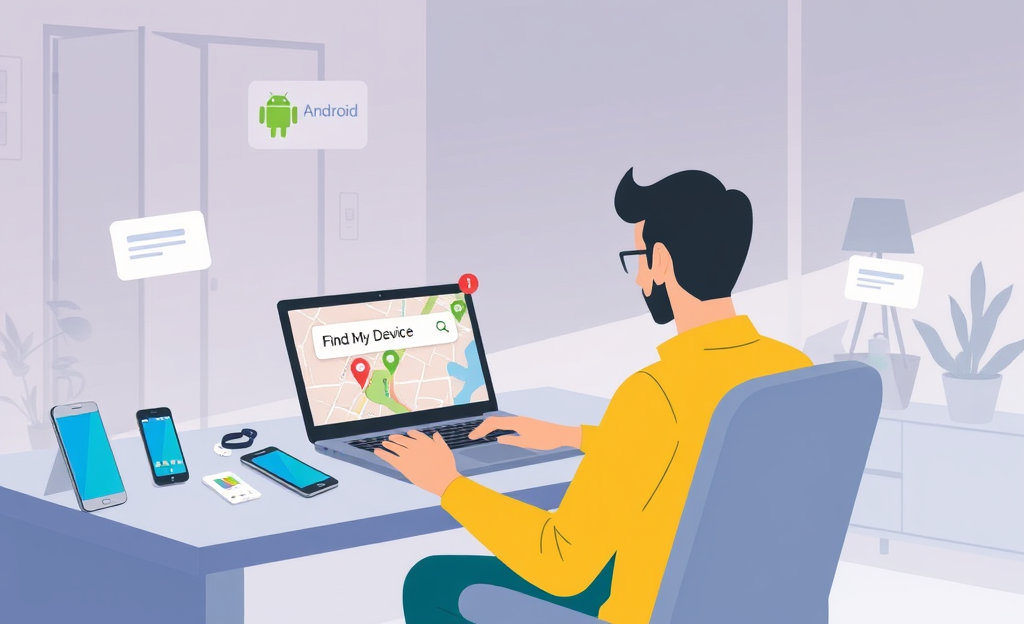
Phone Tracking is an essential tool in today’s fast-paced world, especially when it comes to locating lost or stolen Android devices.
Discover effortless phone tracking!
Start tracking your phone today!
In this article, we will explore how to utilize Google’s ‘Find My Device’ service effectively.
You’ll learn about the prerequisites for tracking your phone, including enabling location services and ensuring internet connectivity.
We will guide you through the steps to access the service, sign in, and ultimately pinpoint your device’s location on a map.
Additionally, we will cover valuable features that enhance your chances of recovering your phone, such as locking, erasing, or playing a sound on the device.
Essential Preparation Before Tracking
Preparation plays a crucial role when attempting to track an Android phone, ensuring the process works smoothly when needed.
Whether it’s recovering a lost phone, checking on a child or elderly parent’s whereabouts, or protecting personal data in case of theft, being prepared significantly increases the chances of success.
Delays or obstacles during recovery often result from missing settings or an improperly configured account, which can entirely block access to the device’s location.
To effectively track a device, users must configure key features in advance.
Google’s Find My Device feature allows real-time tracking, but only if essential settings are enabled beforehand.
For instance, without an active Google account linked to the phone, Google won’t be able to identify the device.
Moreover, keeping the device connected to Wi-Fi or mobile data is necessary so it can send its location to the service
- Keep Location Services active
- Ensure a Google Account is linked
- Stay connected to the internet
Turn On Location Services
To enable Location Services on your Android device, open the Settings app, then tap Location.
Ensure the setting is switched to On.
Next, to set your device in High Accuracy mode, tap Location Services or Google Location Accuracy, depending on your Android version.
Turn on the toggle labeled Improve Location Accuracy.
This setting makes use of Wi-Fi, mobile networks, GPS, and Bluetooth to determine location with optimal precision.
Using High Accuracy is essential when relying on location for services like navigation, delivery tracking, or emergency access.
According to iSharing’s accuracy recommendations, enabling Wi-Fi and Bluetooth scanning significantly enhances results, even when you’re not actively connected to these networks.
Verify Internet Connectivity
To test mobile data or Wi-Fi on an Android phone, swipe down your notification bar and tap the gear icon to access Settings, then go to Network & Internet.
From there, disable and re-enable either Wi-Fi or Mobile Data to refresh the connection.
Once reconnected, open a browser or app like Fing Network Tools to verify internet access.
If the test fails, restart the phone or try toggling Airplane mode.
Without a stable internet connection, tracking the device will not work properly, even if all other settings are correct.
Sign In to Google’s ‘Find My Device’
To access Google’s ‘Find My Device’, start by visiting Google Find My Device on a browser or opening the mobile app on another Android phone.
Upon opening, you must sign in using the Google account that is linked to the device you’re trying to locate.
Ensure you enter the email and password associated with the target device correctly, as credential accuracy is crucial for the tool to function properly.
If the entered credentials are incorrect or the account is not associated with the lost phone, the location cannot be retrieved.
Two-factor authentication might be triggered depending on your account’s security settings, so have access to your recovery device or email ready to complete the sign-in process.
Once signed in, you’ll be able to manage and track any compatible Android device registered under that account, provided it meets the location and connectivity requirements.
Locate and Secure the Android Phone Remotely
Once signed in at Google’s Find My Device platform, you’ll see a list of devices tied to your account.
By selecting the correct Android phone from this list, the system attempts to update its location through Google’s services.
The map highlights the phone’s last known coordinates with visual markers indicating either approximate or accurate positioning.
It’s essential to understand that location accuracy depends on GPS, network availability, and recent activity.
If your device is online, the map will display its current movement; otherwise, only the last known spot appears.
You can zoom and drag the map to analyze nearby landmarks or streets that may help in recovering the device.
After locating the phone visually, consider your next move carefully.
You can use Play Sound to ring the device loudly for up to five minutes, ideal for when it’s nearby.
If you’re concerned about unauthorized access, tap Lock to set a new screen code and display a custom message with contact information.
In serious cases, the Erase option becomes critical; it deletes all data and signs you out automatically.
Use this feature only after confirming loss or theft, because once triggered, this action permanently removes your information.
Always reflect on the consequences, and act in a way that protects both your privacy and personal content.
In conclusion, mastering phone tracking through Google’s ‘Find My Device’ service is crucial for any Android user.
By following the outlined steps, you can swiftly locate your device and utilize additional features to secure it effectively.


0 Comments